
How to Write Help Center Articles That Actually Help
Most help articles fail because they're unclear, incomplete, or impossible to scan. Here are the concrete techniques that make help content work.

You’ve seen the bad ones. A help article titled “Getting Started” that’s 2,000 words of corporate prose with zero screenshots. A troubleshooting guide that skips the one step that actually matters. An FAQ answer so vague it creates more questions than it resolves. According to Forrester, 53% of online adults in the US are likely to abandon a purchase if they can’t find a quick answer. Bad help content isn’t just annoying — it costs revenue.
Here’s how to write articles that actually solve problems.
Why Most Help Articles Fail
Three patterns show up repeatedly in underperforming help centers:
The knowledge curse. Writers who know the product deeply skip steps that feel obvious to them but aren’t obvious to users. “Navigate to Settings” means nothing if the user doesn’t know Settings lives behind a gear icon in the bottom-left corner.
Wall-of-text syndrome. Long paragraphs with no visual breaks. Users scanning for a specific answer bounce immediately. The average user spends 45-60 seconds on a help article — if they can’t find the relevant section in that window, they leave.
Set-and-forget content. Articles written at launch and never updated. Your product has changed 30 times since then, but the screenshots still show last year’s UI. Users lose trust fast.
The Anatomy of a Great Help Article
Every effective help article follows the same structure:
1. Start With the Outcome
Don’t open with background or context. Open with what the user will be able to do after reading. “This article shows you how to connect your custom domain so visitors see yourbrand.com instead of a generic URL.”
Users should know within 5 seconds whether this article answers their question.
2. Use Numbered Steps, Not Paragraphs
Compare these two approaches:
Bad: “To update your billing information, you’ll want to go to your account settings. From there, you can find the billing section where you can update your payment method.”
Good:
- Click your avatar in the top-right corner
- Select Account Settings
- Click the Billing tab
- Click Update Payment Method
- Enter your new card details and click Save
The second version takes 10 seconds to follow. The first takes 30 seconds to parse and still leaves ambiguity.
3. Add Screenshots at Decision Points
You don’t need a screenshot for every step. Add them where users are most likely to get stuck — unfamiliar UI, settings buried in menus, screens that look different on mobile. One well-placed screenshot eliminates 5 support tickets.
4. Write at a 6th-Grade Reading Level
This isn’t about dumbing content down. It’s about removing friction. Short sentences. Common words. Active voice. Tools like Hemingway Editor can help you audit readability.
Avoid: “In order to facilitate the configuration of your integration parameters…” Write: “To set up your integration…“
5. End With Next Steps
Don’t leave users hanging. Link to related articles, suggest what to do if the solution didn’t work, and provide a way to contact support if they’re still stuck. A dead end is a support ticket waiting to happen.
Common Mistakes to Avoid
- Titles that don’t match search intent. “Advanced Configuration Options” tells users nothing. “How to Connect Your Custom Domain” matches exactly what they’ll type in search.
- Missing prerequisites. If the feature requires a Pro plan or admin access, say so at the top. Don’t let users follow 8 steps only to hit a permissions wall.
- No dates or version info. Users need to know if the article is current. Include a “Last updated” marker.
How Helprism Makes Writing Help Content Easier
Writing great articles is easier when your tools work with you, not against you. Helprism’s block editor works like Notion — drag-and-drop blocks for text, images, callouts, and code snippets. The inline AI writing tools help you rewrite unclear sentences, generate step-by-step instructions, and adjust tone.
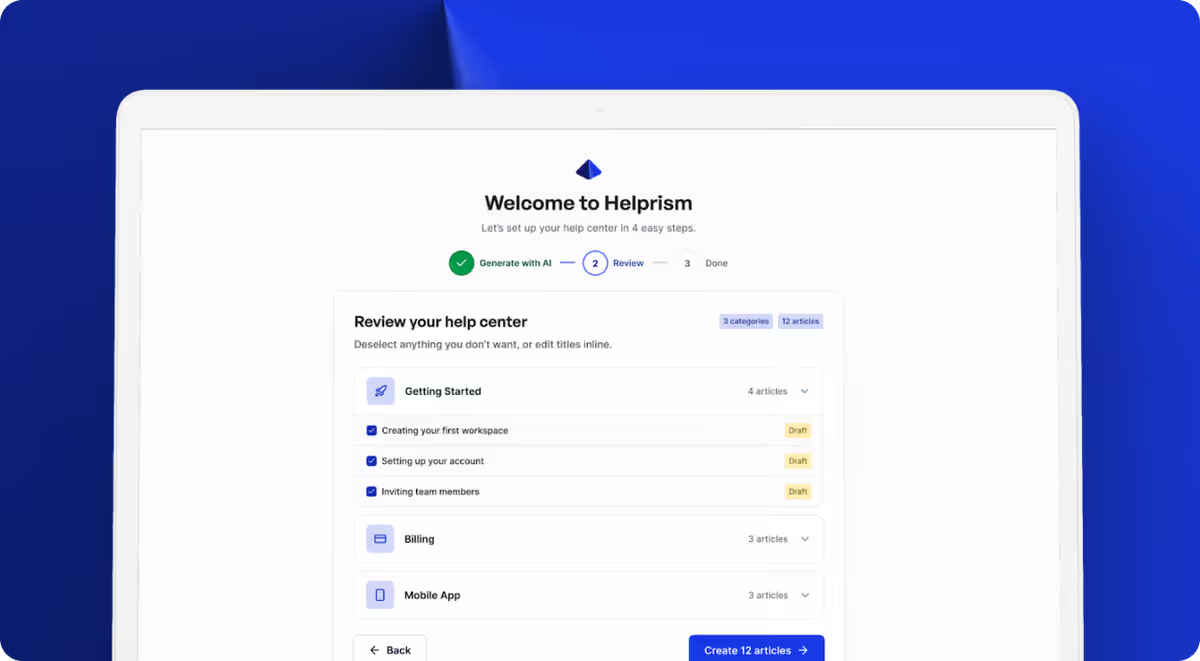
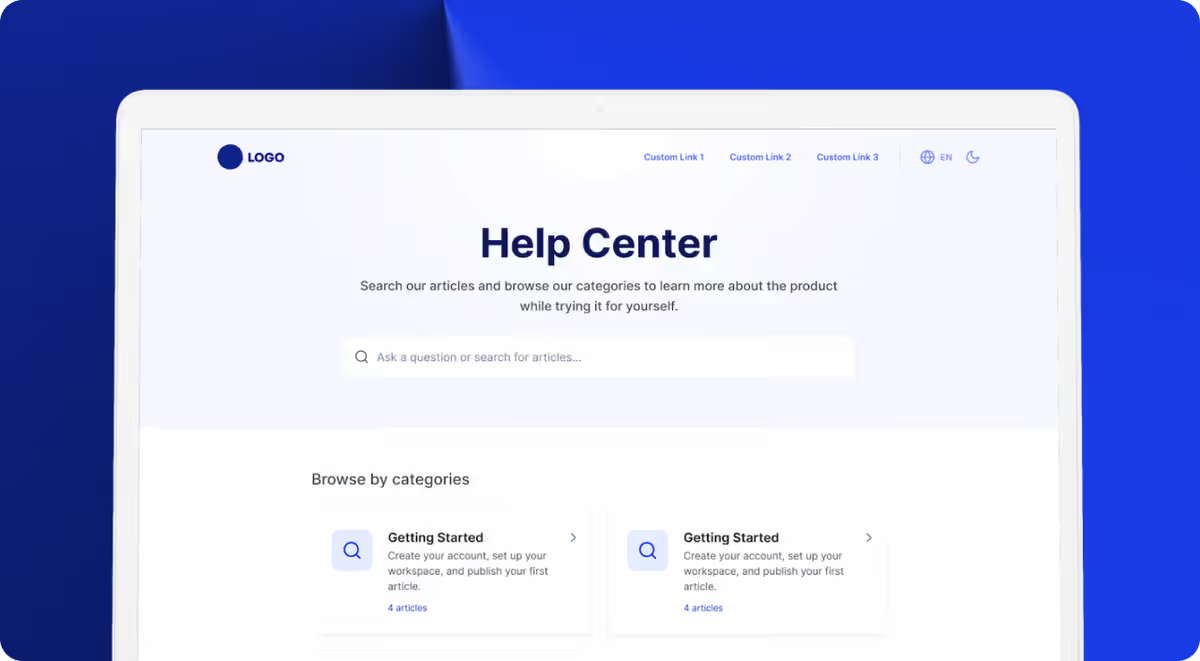
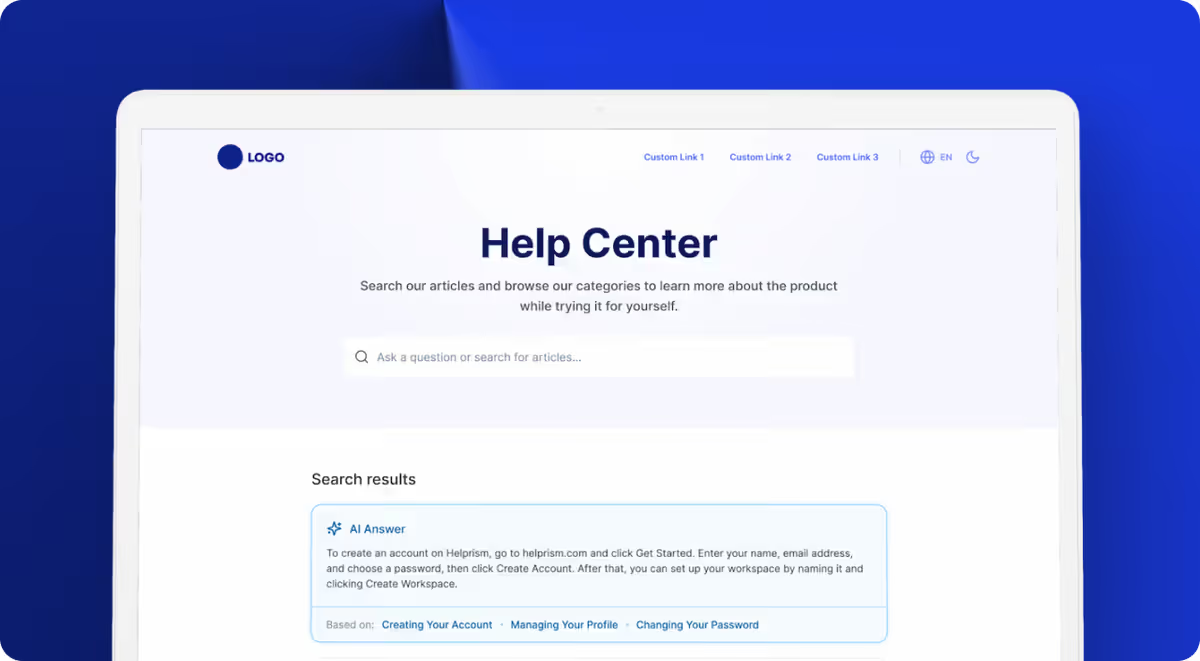
Don’t want to start from scratch? The AI onboarding wizard generates a full help center from your website URL — articles, categories, and structure — in minutes. You refine from there instead of facing a blank page.
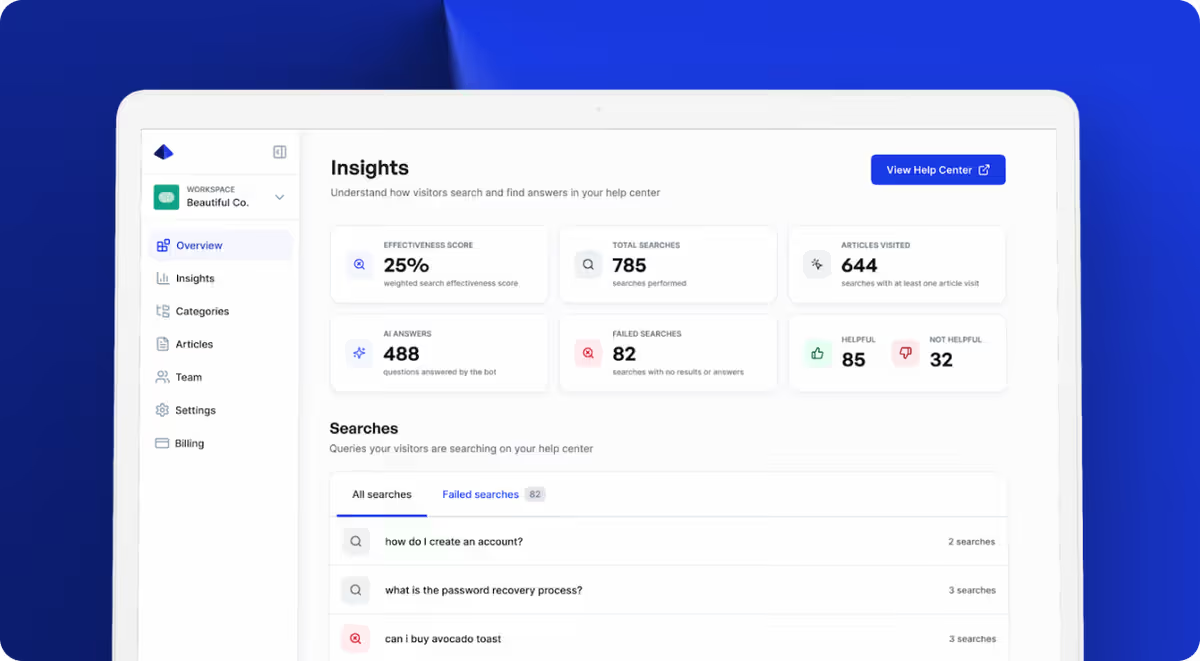
The analytics dashboard closes the feedback loop. You can see which articles get thumbs-down ratings, which searches return empty results, and which topics users look for most. That data tells you exactly what to write or rewrite next.
Helprism is free to start with 10 articles — enough to cover your most critical help content and see the difference good documentation makes.
Ready to get started?
Paste your URL. Review the draft. Publish. Your help center is live before your coffee gets cold.
Start Free →