
How to Migrate Your Help Center Without Losing Traffic
Follow this step-by-step help center migration checklist — covering redirects, metadata, and content audits — to preserve SEO rankings and avoid traffic drops.

Zendesk charges $115/agent/month for their Suite Professional. Intercom’s help center requires a $29/seat plan minimum. At some point, you do the math and realize your help center platform costs more than it should. But every time migration comes up, the same fear kills the conversation: “What about our SEO traffic?”
It is a valid concern. A botched migration can tank organic traffic by 30-60% overnight. But a well-planned migration? Traffic recovers within 2-4 weeks and often improves. Here is how to do it right.
What Actually Causes Traffic Loss During Migration
Migration itself does not kill traffic. Specific, avoidable mistakes do:
Broken URLs are the number one cause. Your old help center lives at help.yourcompany.com/articles/how-to-export-data. Your new platform generates support.yourcompany.com/docs/data-export. Without a redirect, Google sees a 404 error, drops the page from its index, and your ranking evaporates. This single mistake accounts for most migration traffic loss.
Lost metadata is the second. Page titles, meta descriptions, and header tags carry SEO weight. If your new platform does not preserve them — or worse, auto-generates generic ones — your click-through rates drop and rankings follow.
Content duplication happens when both old and new help centers are live simultaneously without canonical tags. Google sees two versions of the same content and may index neither, or split authority between them.
The Migration Checklist (Step by Step)
Phase 1: Audit (Before You Touch Anything)
- Export your URL map. List every article URL in your current help center. Tools like Screaming Frog or a simple sitemap export work. For most help centers, this is 20-200 URLs.
- Flag high-traffic pages. Check Google Search Console for pages with the most impressions and clicks in the last 6 months. These are your priority pages — any issue with these pages is immediately visible.
- Document all metadata. Export page titles, meta descriptions, and H1 tags. You will need these verbatim in the new platform.
- Inventory internal links. Note which articles link to each other. These relationships matter for both SEO and user navigation.
Phase 2: Set Up the New Platform
- Recreate your content structure. Match your existing categories and hierarchy. Do not “reorganize” during migration — that adds a second variable to an already sensitive process.
- Preserve metadata exactly. Copy titles, descriptions, and H1s from your audit. Optimize them later, after traffic stabilizes.
- Match or improve URL structure. Ideally, keep the same slug patterns. If the new platform uses different URL structures, this is where your redirect map becomes critical.
Phase 3: Redirects and Launch
- Build a redirect map. For every old URL, define the corresponding new URL. This is a spreadsheet: old URL in column A, new URL in column B.
- Implement 301 redirects. Use 301 (permanent) redirects, not 302 (temporary). 301s transfer approximately 90-99% of link equity to the new URL. Set these up at the DNS or server level before decommissioning the old platform.
- Verify with a crawl. After redirects are live, crawl every old URL and confirm each one resolves to the correct new page with a 200 status. Fix any that return 404s or redirect loops.
- Submit the new sitemap. Update your sitemap in Google Search Console. Request indexing for your highest-priority pages.
Phase 4: Monitor (Weeks 1-4)
- Watch Search Console daily for the first week. Look for crawl errors, indexing drops, or sudden traffic changes.
- Check 404 reports. New 404s appearing after launch mean your redirect map missed something. Fix these immediately.
- Compare traffic week over week. A 10-15% temporary dip in the first week is normal. Traffic should recover within 2-4 weeks. A 30%+ drop means something is wrong with redirects or indexing.
How Helprism Simplifies Migration
Most migration pain comes from manual content transfer — copying articles, rebuilding categories, re-entering metadata. Helprism eliminates that step.
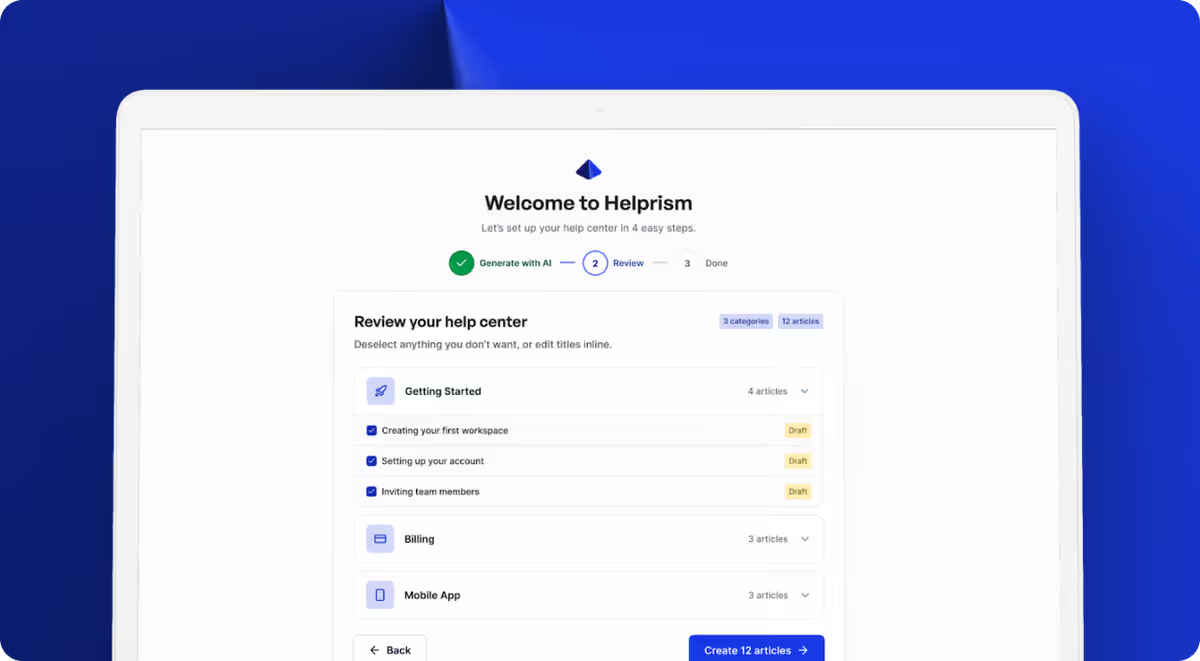
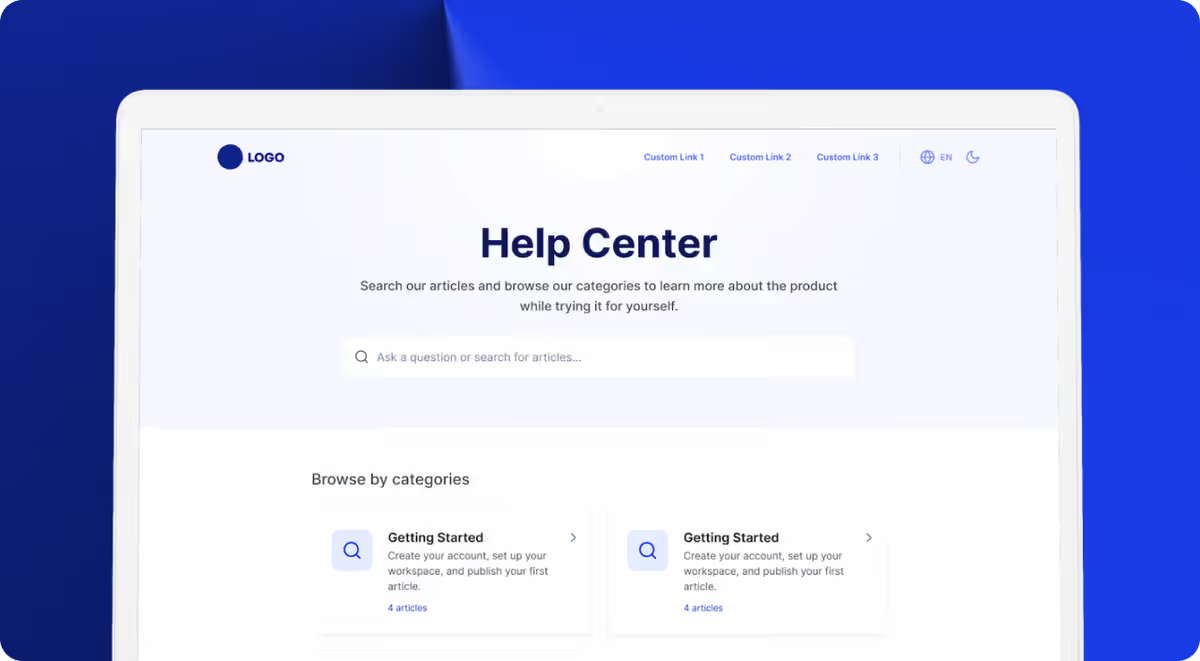
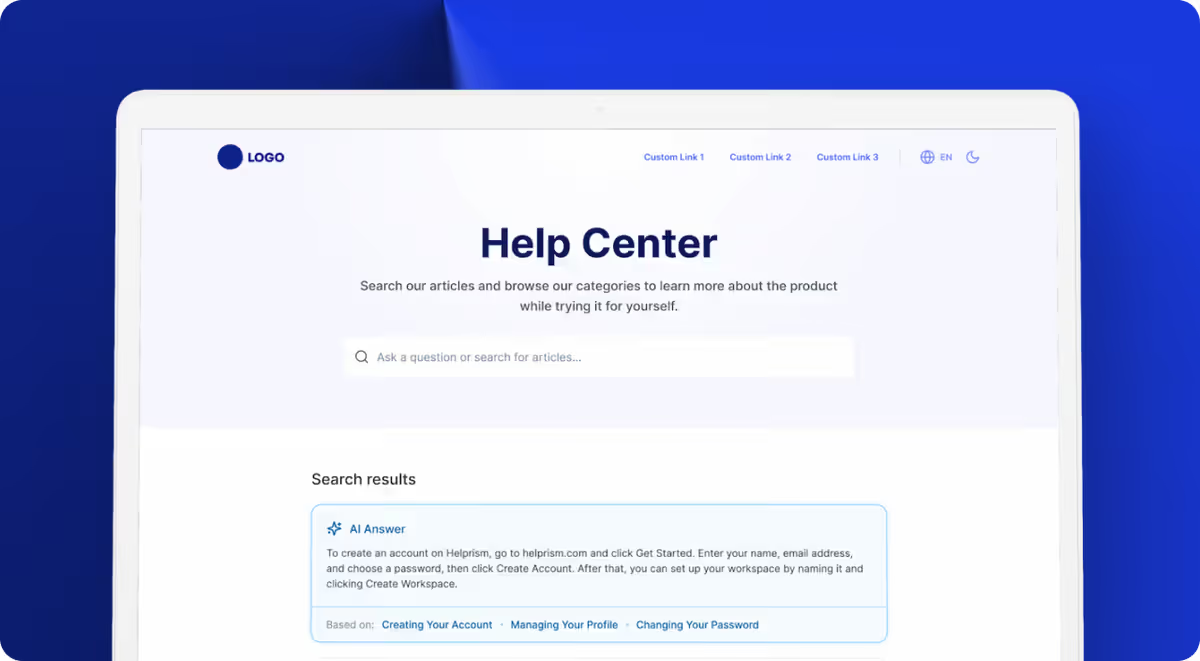
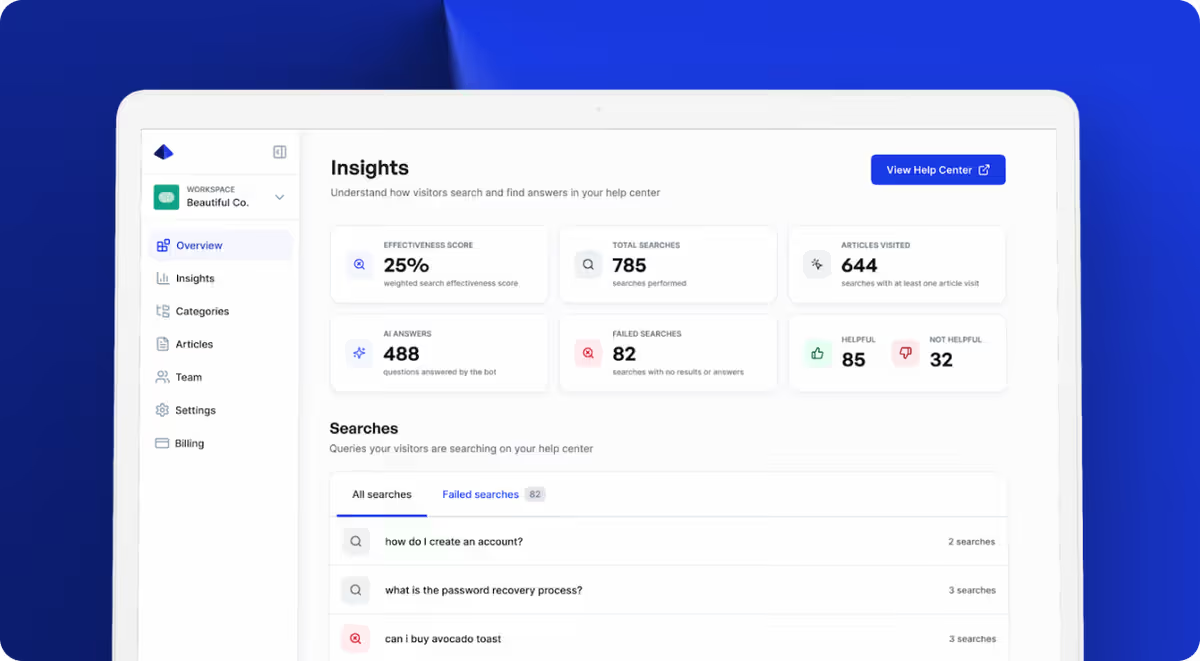
The AI onboarding wizard reads your existing help center and generates a complete replica — articles, categories, and structure — in minutes instead of weeks. Each article includes editable SEO metadata (titles and descriptions), and the analytics dashboard tracks search effectiveness post-launch so you can verify that users are finding what they need.
Helprism starts free ($0 for 10 articles, 1 user), with Starter at $19/mo, Pro at $49/mo, and Business at $99/mo. You can set up and validate your new help center before canceling your old platform — no overlap charges on the free tier.
Migration Is a Weekend Project, Not a Quarter-Long Initiative
The companies that dread migration are the ones without a checklist. Follow the four phases above, prioritize redirects, and monitor for two weeks. Your traffic stays intact, your costs go down, and your help center gets better in the process.
Ready to get started?
Paste your URL. Review the draft. Publish. Your help center is live before your coffee gets cold.
Start Free →